OpenCapture › Blog › Blurring sensitive information
PrivacyBlurring sensitive information in a screenshot — and when it is not enough
Blur is the default redaction tool everywhere, and for most things it is fine. For short, predictable text — an order number, a six-digit code, an email address on a known domain — it is weaker than almost anyone assumes.
The short version. Blur and pixelation are reversible in principle: the original pixels are averaged, not removed, and short text drawn from a small set of possibilities can often be recovered by trying candidates until one blurs to the same result. For anything that actually matters, cover it with a solid block, and make sure the redaction is applied to the pixels before the file is saved — not as a layer or an overlay that can be peeled off.
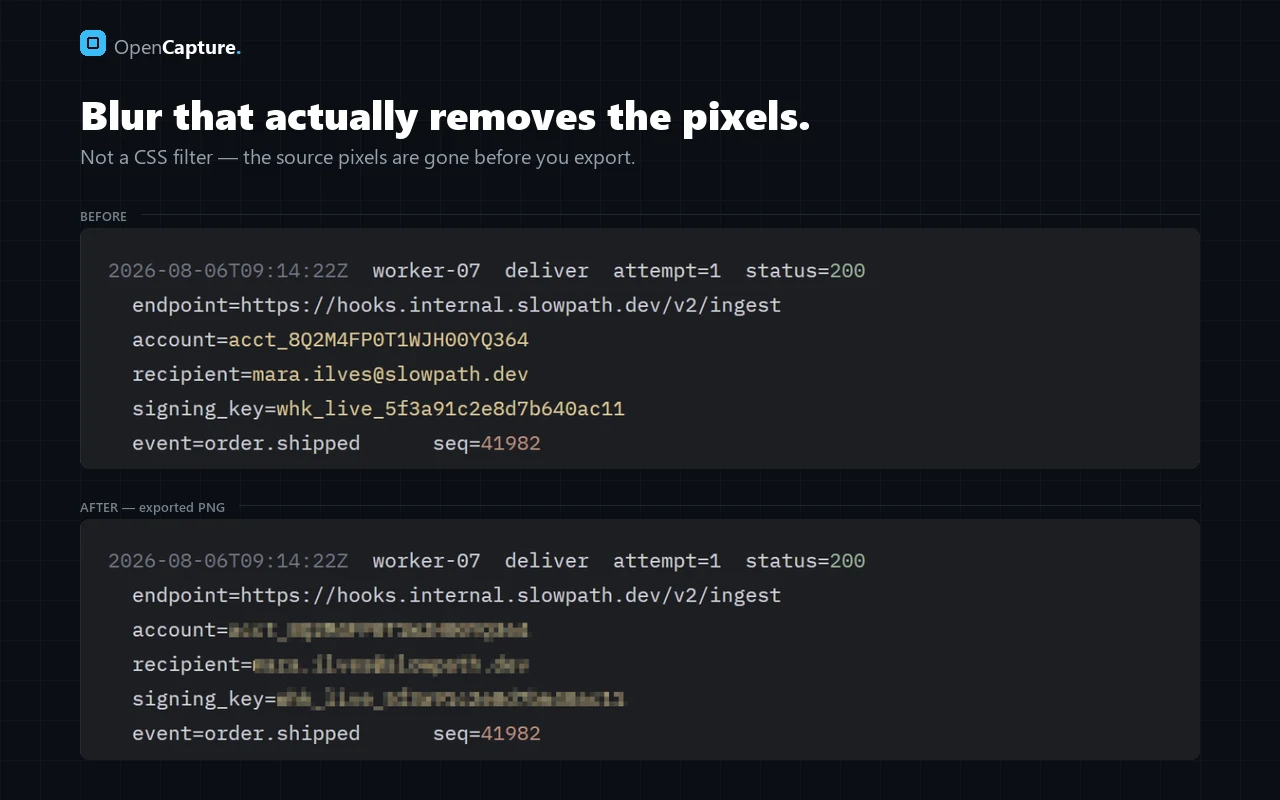
Two ways a redaction fails
1. The redaction was never in the image
This is the common one and the more embarrassing. Some tools draw the black box as an object in a document, a layer in a file format, or a CSS overlay in a preview. Export or open that file in something else and the box moves, or is simply removed, and the original is underneath. It has happened to law firms, government departments and newspapers, repeatedly.
A blurring is only real if the pixels underneath were destroyed at export time. If you can select, move or delete the box after the fact, you have covered the data, not removed it.
2. The blur was reversible
This one is less obvious. A Gaussian blur is a deterministic averaging of neighbouring pixels. Pixelation is the same idea with bigger blocks. Neither adds information and neither destroys as much as it appears to.
If an attacker knows roughly what the text is — a numeric code, a date, a name from a known list, a URL on a known domain — they can render every candidate in the same font at the same size, apply the same blur, and compare. The match is usually unambiguous. This works because the search space is small, not because the blur was done badly.
The practical rule: blur is fine for things that are merely noisy — other people’s avatars, unrelated rows in a table, a busy sidebar. It is not fine for things that are secret.
What to use for what
| Content | Use | Why |
|---|---|---|
| API key, session token, password | Solid block | High value, and often short enough to brute-force from a blur |
| Card number, bank details | Solid block | Fixed format, very small search space |
| Email address, customer name | Solid block | Usually drawn from a guessable set |
| Faces of uninvolved people | Blur is acceptable | Goal is de-emphasis, not secrecy |
| Unrelated content around the point | Blur, or crop | Reducing noise, nothing to protect |
Things people forget to blur
- The URL. Tokens, session IDs and internal hostnames live there, and the address bar is in every screenshot of a browser window.
- Browser tabs. Tab titles leak project names, customer names and what else you were doing.
- Notifications. A toast or a system banner that appeared mid-capture.
- Autocomplete dropdowns. Opened over the field you were demonstrating.
- The window title bar and taskbar. Usernames and machine names.
- Reflections and second monitors in photographs of screens.
A quick habit that catches most of these: before sharing, look at the image once from the outside in — edges first, content last. The leaks are almost always at the edges, because that is where you were not looking.
Metadata is part of the file
An exported image can carry more than pixels. Screenshots taken by some tools embed the source URL, the window title, a timestamp or the device name in EXIF or PNG text chunks. If you have blurred the URL from the image but it is still in the metadata, you have not blurred it. Strip metadata on export, or check the file before it goes anywhere public.
A routine that holds up
- Capture the page, then blur before saving — not after, and not in a second tool.
- Use solid fill for anything secret; reserve blur for de-emphasis.
- Sweep the edges: URL bar, tabs, title bar, notifications, taskbar.
- Export, then reopen the exported file and confirm the blurring is baked into the pixels and nothing sits under it.
- Check the file’s metadata if it is going anywhere public.
How OpenCapture handles it
Blur and solid-block blurring are applied to the pixels in the editor, and the export is flattened — there is no separate layer to remove and nothing underneath to recover. All of it runs locally in a Rust/WebAssembly core, so a screenshot containing customer data is never uploaded anywhere in order to be edited, which matters more than the blurring tool itself if the image is sensitive in the first place.
Common questions
Can blurred text in a screenshot be recovered?
Often, yes, when the text is short and predictable. Blur averages pixels rather than removing them, so candidates can be rendered, blurred the same way and compared until one matches. Use a solid block for anything secret.
Is pixelation safer than blur?
No. Pixelation is the same averaging with larger blocks, and is subject to the same candidate-matching attack.
What is the safest way to hide information in a screenshot?
Cover it with a solid, opaque block, flatten the image on export so nothing sits underneath, and strip the file’s metadata before sharing.
What do people most often forget to blur?
The edges of the image: the URL bar, tab titles, notifications, the taskbar and the window title. Content gets checked; edges do not.