OpenCapture › Webpage to PDF
PDFHow to save a webpage as a PDF that still looks right
To save a webpage as a PDF without page breaks or cut-off content, capture the whole page as one image and export that as a PDF: the file is one continuous page that matches the screen. Your browser’s print dialog (Ctrl + P) gives searchable text instead, but splits the page into paper-sized sheets.
The short version. Your browser’s print dialog gives you real, searchable text but re-lays the page out for paper. A full-page capture exported as a PDF keeps the layout exactly as rendered, but the text is an image. Neither is better — they answer different questions.
First decide which one you actually want
| What you need | Print to PDF | Capture, then export PDF |
|---|---|---|
| Text you can select, search and copy | Yes | No — it is an image |
| Layout identical to the screen | No — it reflows | Yes |
| Backgrounds, gradients, dark themes | Often dropped | Kept |
| Sticky headers and fixed sidebars | Often repeated or lost | Rendered once, in place |
| One long page instead of many sheets | No | Yes |
| Blur something before saving | No | Yes |
| Smallest file | Usually smaller | Usually larger |
| Anything to install | Nothing | One extension |
If you are archiving a receipt, an invoice or a confirmation page and you might need to search it later, print to PDF. If you are capturing evidence of how a page looked — a bug, a listing, a design, a page that will change — capture it.
Method 1 — print to PDF, built into every browser
Nothing to install, and it produces genuine text.
- Press Ctrl + P (Cmd + P on a Mac) to open the print dialog.
- In the destination list, choose the PDF option rather than a printer.
- If the page looks wrong in the preview, open More settings and turn on Background graphics — that is what restores colours, shading and background images.
- Save.
What goes wrong here is not a bug. The page is being re-typeset for a sheet of paper, so anything that depended on the width of your window — a grid, a sticky sidebar, an element positioned over another — gets recomputed. Some sites also ship a print stylesheet that deliberately strips navigation and images, and you get that instead of what you were looking at.
The four ways it goes wrong
- The page is sliced into sheets. A long article becomes thirty pages, and the cut lands wherever the flow puts it — through a screenshot, through a table, halfway down a chart. Nothing in the dialog controls where those breaks fall.
- Images that never loaded print blank. Most sites only load images when they scroll into view. Print a page you just opened and everything below the fold can come out empty. Scrolling to the bottom first, then back to the top, fixes this one.
- Colours and backgrounds disappear. Background graphics are off by default, so a dark-themed site prints as black on white. It is a checkbox, but you have to know it is there.
- Fixed navigation repeats. A header pinned to the top of the window can be re-rendered onto every sheet, so the same menu bar sits above every page of the output.
Saved PDF cut off? How to fix it
When a saved PDF is cut off, the print dialog has split the page at paper size or clipped what did not fit on the sheet. Try these in order:
- Scroll to the bottom of the page first, then back to the top, so images that only load as you scroll are there before you print.
- In the print dialog, lower the scale or switch to landscape, so wide content fits across the sheet instead of being clipped at the edge.
- Turn on Background graphics if colours or images are missing.
- If it is still cut across pages, capture instead of printing: take a full page screenshot and export it as a PDF (method 2 below). The file is one continuous page, so nothing is cut between sheets.
Method 2 — capture the page, then export it as a PDF
This one takes a full page screenshot of the page as rendered and writes it out as a PDF, so the file matches the screen.
- Install OpenCapture for Chrome, Edge or Firefox, and pin it to the toolbar.
- Open the page and click the OpenCapture button.
- Choose full-page capture. The page is scrolled and stitched into a single image, however long it is, with no visible seams between bands.
- Crop or blur anything you don’t want in the file. Undo is unlimited.
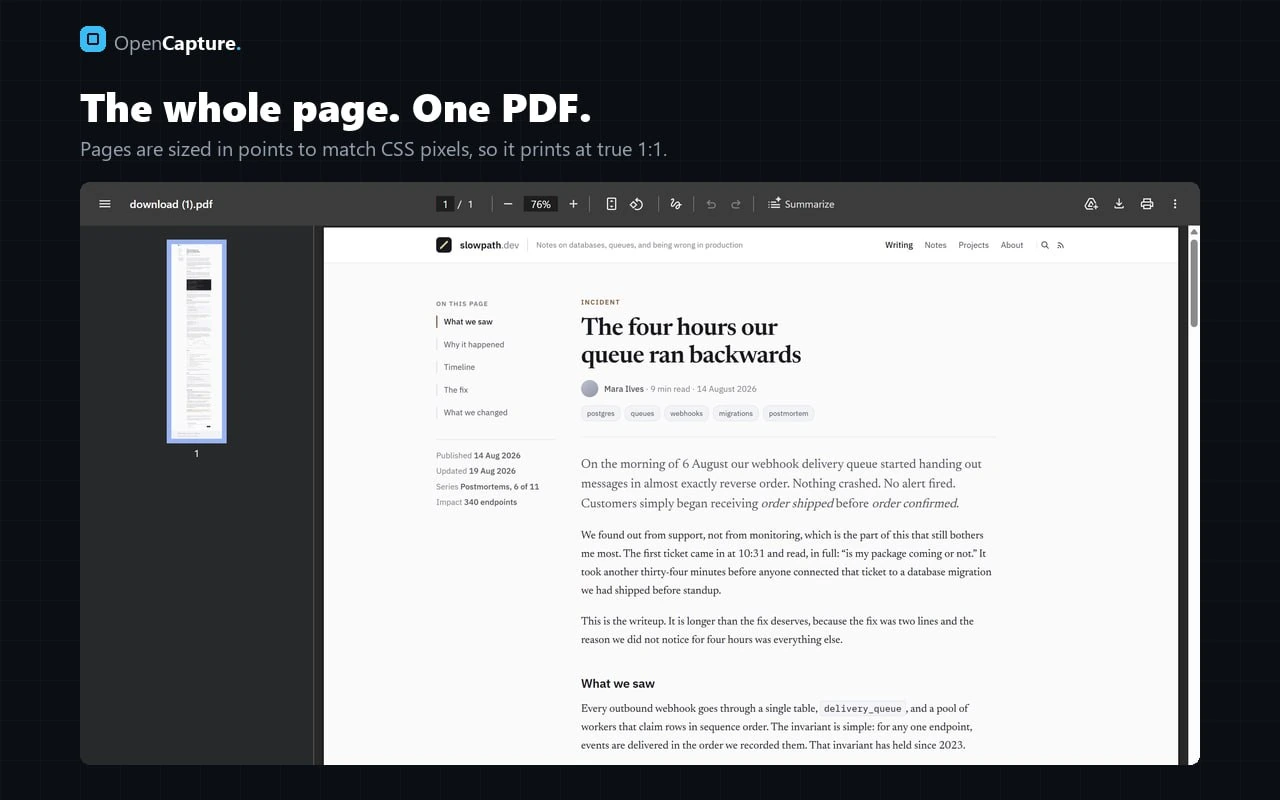
- Export as PDF. Pages are sized in points to match CSS pixels, so the result prints at true 1:1 instead of being scaled to fit.
The trade-off, stated plainly: the PDF holds one image per page, so you cannot select, search or copy the text inside it. That is the price of keeping the layout. If searchable text matters more than fidelity, method 1 is the right answer — and it is free and already on your machine.
Everything runs in your browser. The page is never sent anywhere, which is the other difference from an online converter: those have to receive or re-fetch the page on a server to build the file. How that works, and how to check it.
Saving a webpage as an image instead
If the file does not have to be a PDF, an image is often the better container. A PNG has no pages at all, so there is nothing for a page break to ruin, and every viewer on every device opens one without asking questions. It is the right choice for a receipt, a bug report, a listing that will change, or anything you want to paste into a chat.
Same capture, different export: take the full page, then save it as PNG rather than PDF. Use a PDF when the file needs to look like a document — something to attach to an email, file with an expense claim, or print later. Use an image when it just needs to be looked at.
Why the PDF comes out the wrong size
This is the complaint that comes after the layout one: the file is correct, but the text is tiny, or the document is absurdly wide, or a two-page article became a 40MB download. All three have the same root cause — a screen has no page size, and a PDF must have one.
Points and CSS pixels are different units
A PDF measures in points: 72 to the inch. The web measures in CSS pixels: 96 to the inch. So a 1,200px-wide capture is 900pt wide, which is 12.5 inches — wider than A4 (595pt, 8.27in) and wider than Letter. If the exporter forces the image onto A4, it has to shrink it by about a third, and every piece of text on the page shrinks with it. That is where “the PDF is unreadable” comes from: not a rendering fault, a unit conversion.
| Sizing choice | What you get | Good for |
|---|---|---|
| Page sized to the capture | One continuous page at true 1:1, any dimensions | Reading on screen, archiving, sharing a record of the page |
| Forced to A4 / Letter | Content scaled down to fit paper | Physically printing it |
| Sliced across sheets | Fixed-size pages, breaks land wherever they land | Almost nothing — breaks usually cut through content |
OpenCapture takes the first: the page is sized in points to match the capture’s CSS pixels, so a long article becomes one long page at 1:1 rather than being scaled or cut. If you need it on paper afterwards, your PDF viewer’s own fit to page setting does that at print time, which is the right place for the decision.
Why the file is so large, and what to do about it
A capture-based PDF contains an image, and the image is as tall as the page was. A 20,000px article at 2× device pixel ratio is 40,000px of image data before any compression — tens of megabytes is normal, not a bug. Three things actually reduce it:
- Crop first. The comment section is usually most of the height and none of the value.
- Capture at 1× if it is for screen. Doubling the device pixel ratio roughly quadruples the data and only helps if the file will be printed or zoomed.
- Prefer a photographic codec for photo-heavy pages, and a lossless one for pages that are mostly text and UI — text compresses badly as JPEG and picks up halos around the letters.
If searchable text is what you actually need, none of this applies — use method 1. A capture-based PDF is pixels by definition, so it will never be searchable however it is sized.
Chrome, Firefox and Edge
Both methods work the same way in all three. Ctrl + P opens the print dialog everywhere, and the PDF destination is in the same place. OpenCapture ships the same Manifest V3 build to all three, so the button, the editor and the PDF export are identical wherever you are — worth knowing if you use Firefox at home and something else at work, because several popular full-page extensions never shipped a Firefox version at all. Compared to GoFullPage. Firefox has the most capable built-in capture of the three, but a full page screenshot in Firefox still only writes PNG.
Questions
Why does my webpage look wrong when I save it as a PDF?
The print dialog re-lays out the page for paper. Sticky headers, multi-column grids, background images and anything positioned absolutely are the usual casualties. A full-page capture exported as a PDF avoids this because it photographs the rendered page instead of reflowing it.
Why is the text so small when I save a webpage as a PDF?
The capture is wider than A4 or Letter, so forcing it onto that paper size scales everything down — a PDF measures in points (72 per inch) while the web measures in CSS pixels (96 per inch). Exporting at a page size that matches the capture keeps it at 1:1.
Why is my webpage PDF so large?
It contains an image as tall as the page. Cropping before export, and capturing at 1× rather than 2× when the file is only going to be read on screen, are the two changes that make a real difference.
Is the text in an OpenCapture PDF selectable or searchable?
No. OpenCapture exports the capture as one image per page, so the text is pixels, not characters. If you need to select, search or copy the text, use your browser’s own print-to-PDF instead — that produces real text.
How do I save a long webpage as one long PDF?
Capture the full page first, then export to PDF. However long the page is, it is stitched into a single image and written as one continuous PDF page rather than being cut across sheets.
Is there a free way to convert a webpage to PDF without uploading it?
Your browser’s print-to-PDF is free and local. OpenCapture is also free, needs no account, and runs entirely in the browser — nothing about the page is sent anywhere. Online converters, by contrast, fetch or receive the page on their servers.