OpenCapture › How-to › Full page screenshot in Chrome
How to take a full page screenshot in Chrome
Chrome is the only one of the three major desktop browsers with no full page screenshot anywhere in its interface. There is a command that does it, and it works — it is just in the developer tools, and it has four limits worth knowing before you rely on it.
Method 1 — the command hidden in DevTools
Nothing to install. This captures the entire scroll height, not just the part on screen.
- Open DevTools. Press F12, or right-click the page and choose Inspect.
- Open the Command Menu. Press Ctrl + Shift + P, or Cmd + Shift + P on a Mac.
- Type screenshot and choose Capture full size screenshot — the second of the four capture commands in the list.
- Save the file. Chrome writes a PNG straight out, with no preview step. If your downloads are set to ask where to save each file, a Save dialog opens first — and the suggested name can arrive without a .png on the end, which you have to type in yourself.
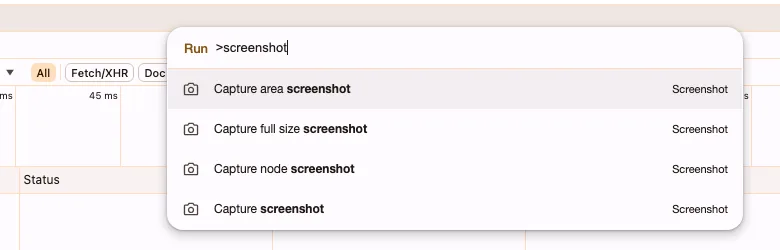
The other three are worth knowing while you are here. Capture area screenshot lets you drag a box over a region. Capture node screenshot photographs whichever element you have selected in the Elements panel, cropped exactly to its box — the fastest way to get a clean shot of one card or one table. Capture screenshot takes the visible viewport and nothing more.
Where the DevTools capture stops
Four limits, roughly in the order you will meet them.
It only writes PNG
There is no PDF option and no JPEG option. If you are archiving a page or sending something to someone who expects a document, you get an image and convert it yourself — and converting a very tall PNG to PDF usually re-introduces the page breaks you were trying to avoid. The two routes to a PDF, and why they produce different files, are in saving a webpage as a PDF.
Long pages come back truncated
Browsers cap how large a single canvas surface can be; on Chrome that is 32,767 pixels on any one dimension. Exceeding it raises no error — the canvas quietly stops working and you get a blank or cut-off image with nothing in the console. Documentation sites, long changelogs and social feeds reach that height more easily than you would expect. The mechanism is in how full-page screenshots work.
Lazy images arrive as grey boxes
Images that load when they scroll into view need a moment. The capture scrolls faster than that, so it photographs the placeholder. The page looked complete while you were reading it because you scrolled at human speed.
There is no editing step
What lands in your downloads folder is the raw page. Cropping the cookie banner off the top, circling the thing you are pointing at, or blurring an email address before you send it all happen somewhere else.
Method 2 — capture and edit in one pass
This is where OpenCapture fits. It is a full page screenshot extension for Chrome — also Edge and Firefox — it is free, and it needs no account.
- Click the toolbar icon on the page you want.
- Pick a mode. Full page, visible area, or a region you drag.
- Edit before you export. Crop, draw, add text, blur anything private — all in the built-in editor, with unlimited undo.
- Export as PNG or PDF. The file is written on your own machine; the capture never leaves it.
Sticky headers and fixed sidebars are rendered once, where they belong, instead of marching down the finished image — which is the failure you are most likely to have seen from a tool that skips that step.
Chrome is the one browser with no built-in
Edge ships Web capture, with three modes and a pen, on Ctrl + Shift + S. Firefox puts Take Screenshot in the right-click menu. Chrome, the browser most people use, has neither — which is why the full page screenshot extension category exists at all, and why it is as crowded as it is. The three built-ins side by side are in scrolling screenshots on desktop; the extensions are compared on alternatives.
Take a full page screenshot in Chrome
Questions
Where is Capture full size screenshot in Chrome?
In the DevTools Command Menu, not in any of Chrome’s own menus. Press F12 to open DevTools, then Ctrl + Shift + P to open the Command Menu, type screenshot, and pick Capture full size screenshot from the four capture commands that appear.
Why is my Chrome full page screenshot cut off at the bottom?
A browser caps how large a single canvas surface can be — on Chrome, 32,767 pixels on any one dimension. Past that the capture comes back truncated or blank, and nothing appears in the console to explain it. A page that long has to be captured in segments or written out as a multi-page PDF.
Why are images missing from my Chrome screenshot?
Images that load only when they scroll into view need a moment to arrive. A capture that scrolls and photographs without pausing gets the placeholder instead of the picture, which is why a page that looked fine while you were reading it can come back full of grey boxes.