OpenCapture › How-to › Full page screenshot in Firefox
Full page screenshot in Firefox — capture the whole page
To take a full page screenshot in Firefox, press Ctrl + Shift + S (Cmd + Shift + S on a Mac) or right-click an empty part of the page and choose Take Screenshot, then click Save full page and Download. Firefox saves the whole page as a PNG, no extension needed. For a PDF or edits, use an extension.
Method 1 — the tool already in Firefox
Nothing to install. This takes a Firefox full page screenshot of the entire page, not just the part you can see.
- Right-click an empty part of the page — not a link, not an image, or you will get the menu for that element instead.
- Choose Take Screenshot. The page dims and a small panel appears.
- Click Save full page, at the top right. The other button, Save visible, only captures what currently fits on screen.
- Check the preview, then Download. The file lands in your downloads folder as a PNG.
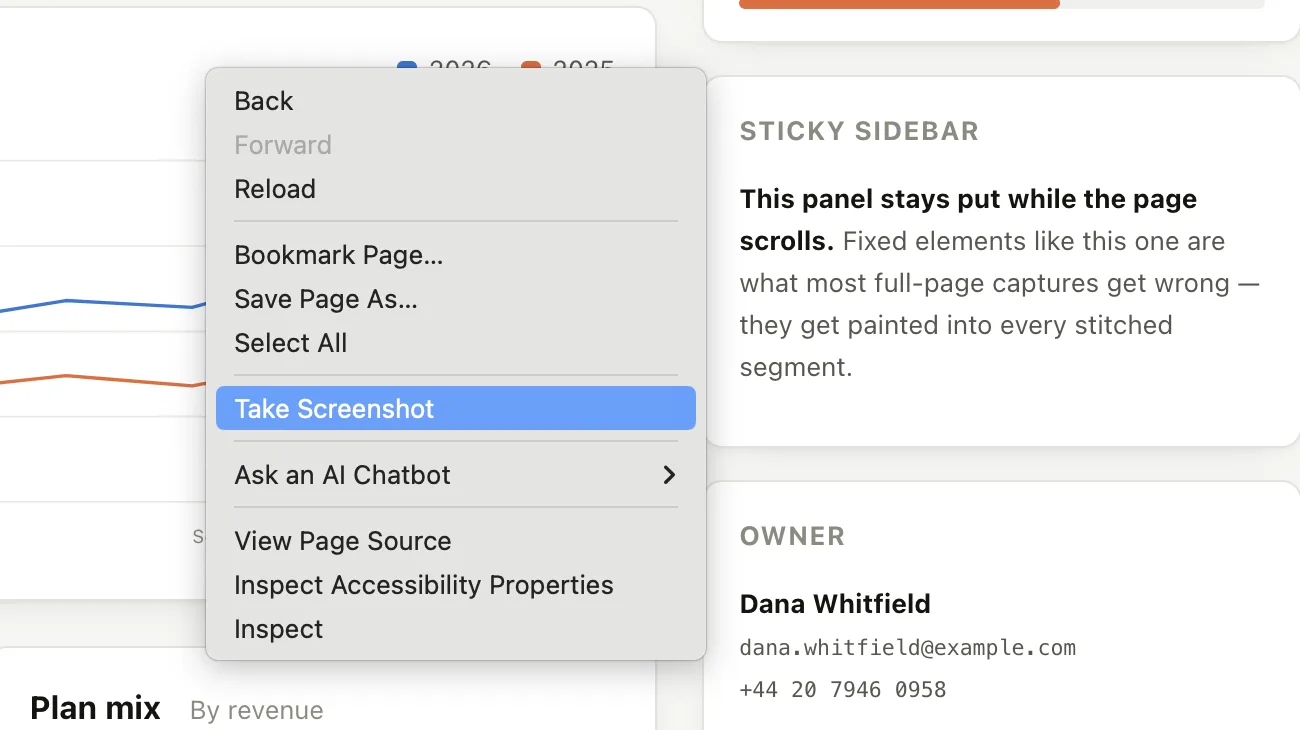
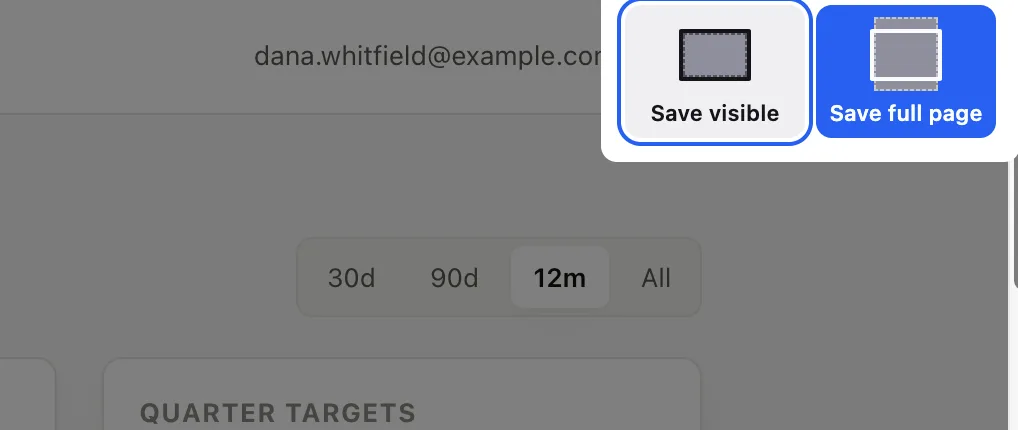
You can also drag a box over part of the page to capture just that region, which is the one thing the built-in tool does that most extensions make harder.
The rest of what the tool does
Three things the right-click route does not make obvious, and which cover most of what people are actually asking when they ask how to take a screenshot in Firefox.
There is a keyboard shortcut, and a toolbar button
Ctrl + Shift + S (Cmd + Shift + S on a Mac) opens the same overlay without the context menu. If nothing happens when you press it, another application has claimed the combination — screen-recording utilities are the usual culprit — and you are back to the right-click route. For a button you can see, open the menu, choose More tools › Customize toolbar, and drag Screenshot onto the toolbar.
Copy and Download are two different endings
Once you have picked Save visible, Save full page or a dragged region, the preview offers both. Copy (Ctrl + C) puts the image on the clipboard to paste straight into a ticket, a chat or a document, with no file written at all. Download (Ctrl + S) writes a PNG named after the date, the time and the page title, into whichever folder Firefox is set to download into — there is no separate screenshots folder, which is why people go looking for one and do not find it.
It is not the same thing as Print Screen or the Snipping Tool
PrtScn, and Windows’ own Snipping Tool on Win + Shift + S, photograph the screen: a screen capture of the window, not of the page. They cannot reach below the fold, and they capture your tabs, bookmarks bar and desktop along with the page. Firefox’s tool works on the document instead, which is what lets Save full page return the whole scroll height and nothing else. If what you wanted was the page rather than the window, use the browser’s tool, not the operating system’s.
Firefox screenshot of the whole page, with scrolling
Save full page is Firefox’s scrolling screenshot. You do not scroll first or hold anything down: one click returns the whole page, top to bottom, as a single PNG. What people call a long screenshot, a scrolling screenshot or a full page screenshot in Firefox is this same button. On a Mac the shortcut is Cmd + Shift + S; the other routes on a Mac, in Chrome and Edge as well as Firefox, are in scrolling screenshot on a Mac.
Where the built-in tool stops
The limits of a Firefox full page screenshot, in the order you are likely to hit them:
It only saves PNG
There is no PDF option. If you are archiving a page, filing an expense, or sending something to someone who expects a document, you get an image file and have to convert it yourself. Converting a very tall PNG to PDF usually re-introduces the page-break problem you were trying to avoid. To save a webpage as a PDF without page breaks, export the capture as one continuous PDF page instead.
There is no editing step
What you get is the raw page. If you need to crop the cookie banner off the top, circle the thing you are pointing at, or blur an email address before sending it, you are opening a separate image editor.
Firefox screenshot of the whole page comes out blank?
On an ordinary content page it does exactly what it says — a Wikipedia article comes back complete, top to bottom. The behaviours below turn up on app-like sites, and they are worth recognising before you assume something is wrong at your end. If a plain page like Wikipedia also fails for you, the problem is somewhere else.
The bottom comes back blank. The image has the full height, but the lower part of it has nothing in it. The obvious workaround does not reliably help: scrolling the page through first, so that every part of it has been on screen once, and then capturing again, can still come back blank. The reason a capture can have the full height and nothing in it is the stitching step itself, taken apart in how full-page screenshots work.
Firefox full page screenshot not working?
Take Screenshot is missing from the right-click menu. Check that you right-clicked an empty part of the page, not a link or an image. If it is still missing, the screenshot tool may have been turned off: an organisation can disable it with Firefox’s DisableFirefoxScreenshots policy, and typing about:policies in the address bar lists the policies in force on your copy of Firefox.
The shortcut does nothing. Another application has probably claimed Ctrl + Shift + S. Use the right-click menu, or add the Screenshot button to the toolbar as described above.
The image has the full height but the bottom is empty. That is the blank-bottom behaviour in the section above, and it comes from the page, not from your copy of Firefox.
Method 2 — a Firefox screenshot extension for full pages
This is where OpenCapture fits. It is a full page screenshot extension that runs in Firefox as well as Chrome and Edge, it is free, and it needs no account. It takes a full page screenshot in Firefox the same way the built-in tool does, then adds what that tool leaves out: an editor, blur, and PDF export.
- Install it from Firefox Add-ons and pin the icon to your toolbar.
- Open the page you want and click the OpenCapture icon.
- Choose full page — it stitches the whole scroll height into one image.
- Edit before you export: crop, draw, add text or shapes, blur anything that should not leave your machine.
- Export as PNG or PDF.
The capture runs on your device. There is no upload step in the code path, and the source is on GitHub if you would rather check that than take it on trust.
Use the built-in tool for a Firefox full page screenshot when the page is short, you want a PNG, and you do not need to change anything. It is already there and it is two clicks. The extension earns its place on long pages, when you need a PDF, or when you need to edit before sending.
Firefox users have been an afterthought in this category
OpenCapture ships a Firefox build alongside the Chrome and Edge ones. GoFullPage announced its Firefox version in September 2026, and the comparison is on the GoFullPage alternative page. Its Chrome version was removed from the Chrome Web Store and later restored. FireShot also ships a Firefox build, and keeps its editor behind a paid Pro licence — see the FireShot Pro free alternative.
Full page screenshot in Firefox, edited before you save
Questions
Does Firefox have a built-in full page screenshot?
Yes. To take a full page screenshot in Firefox, right-click an empty area of the page, choose Take Screenshot, then click Save full page. It captures the entire scroll height and saves a PNG, with no extension required.
Why is the bottom of my Firefox screenshot blank?
The image comes back with its full height but nothing in the lower part. Scrolling the page through first, so that every part of it has been on screen once, does not reliably fix it. On an ordinary content page the problem does not arise — a Wikipedia article comes back complete, top to bottom.
Can Firefox save a webpage screenshot as a PDF?
Not from the built-in tool: a Firefox full page screenshot is always a PNG. You can print the page to PDF with Ctrl + P, but that re-typesets the page for paper. To keep the page looking as it did on screen and still get a PDF, capture it as one image and export that to PDF — see webpage to PDF.
How do I take a scrolling screenshot in Firefox?
Use Save full page. Press Ctrl + Shift + S (Cmd + Shift + S on a Mac), or right-click an empty part of the page and choose Take Screenshot, then click Save full page and Download. Firefox captures the whole page in one go, with no scrolling on your part, and saves a PNG.
What is the Firefox screenshot shortcut?
Ctrl + Shift + S on Windows and Linux, Cmd + Shift + S on a Mac. It opens the screenshot overlay, where Save full page captures the whole page and Save visible captures only what is on screen.
Is there a Firefox add-on for full page screenshots?
Yes. OpenCapture is a free full page screenshot add-on on Firefox Add-ons, for Firefox 142 or later. It captures the whole page, lets you crop, annotate and blur it, and exports a PNG or PDF, with no account and nothing uploaded.