OpenCapture › How-to › Scrolling screenshot on desktop
How to take a scrolling screenshot on desktop
A scrolling screenshot captures a whole page — everything above and below the fold — as one image. Every desktop browser can do some version of this, but only one of the three does it well out of the box. Here is where each one stands.
A scrolling screenshot is the same thing as a full page screenshot; the two names are used for the same result. OpenCapture, a free and open-source extension, takes a scrolling screenshot the same way in Chrome, Edge and Firefox. The built-in method for each browser comes first.
On a phone? This page is about desktop browsers. Android and iOS handle long screenshots at the system level, not in the browser, so none of the methods below apply.
On a Mac? The browser methods below work there too, with the Mac’s own shortcuts. What macOS’s own screenshot tools can and cannot do is in scrolling screenshot on a Mac.
Scrolling screenshot in Edge — the most complete built-in
Edge’s Web capture takes a scrolling screenshot with no developer tools involved, and gives you three capture modes and a markup step.
- Press Ctrl + Shift + S — or right-click the page and choose Web capture.
- Pick a mode. Capture area for a region you drag out, Capture screen area for what is currently on screen, or Capture full page for the whole thing.
- Mark it up, if you want. There is a pen with a choice of colours, and an eraser.
- Save it. Edge writes a JPEG.

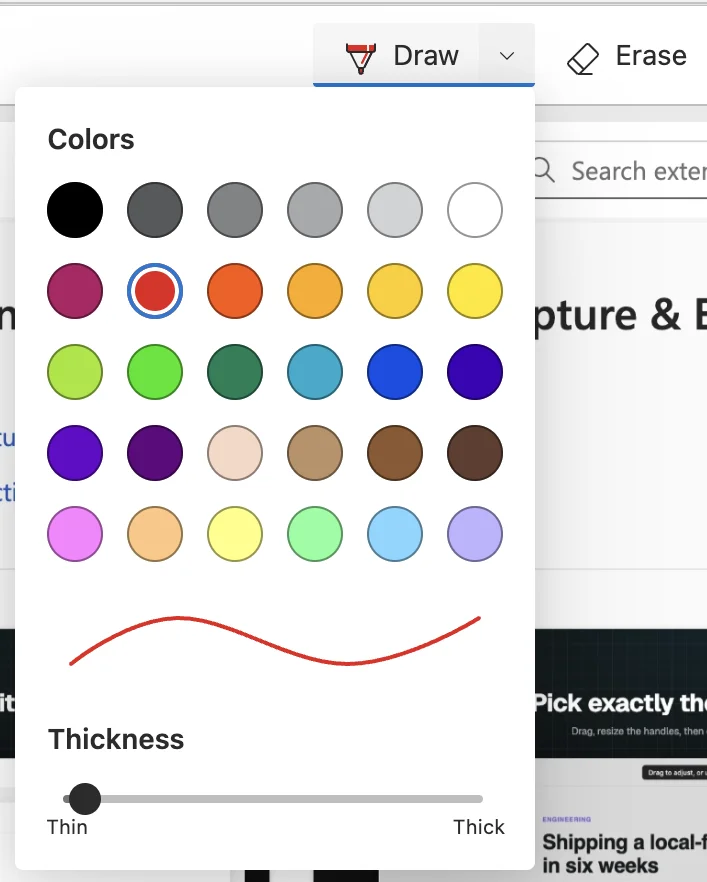
That pen and eraser are the whole editing step, and the JPEG it writes is the only format on offer — which matters on dense pages, because the full-page mode renders them slightly reduced before it saves. Those five limits, and what to do at each one, are in where Edge’s Web capture stops.
Scrolling screenshot in Firefox — two clicks from the right-click menu
- Right-click an empty part of the page, away from links and images.
- Choose Take Screenshot.
- Pick a mode. Save visible for what is currently on screen, or Save full page for the whole thing.
- Download it. Firefox writes a PNG.
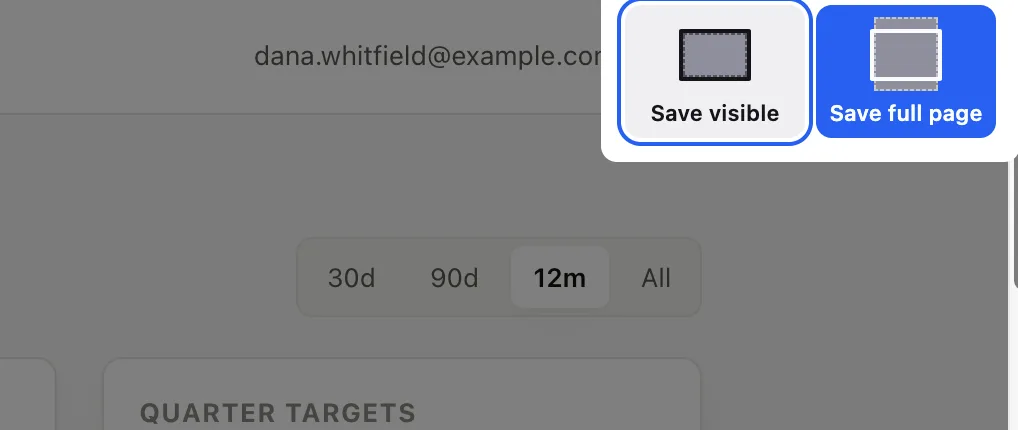
A scrolling screenshot this way works cleanly on ordinary content pages. On some sites the capture comes back with its full height but nothing in the lower part of it.
Those cases, and what to do about each of them, are covered in how to take a full page screenshot in Firefox. What a browser is actually doing between the first band and the last, and the four ways it goes wrong, is in how full-page screenshots work.
Scrolling screenshot in Chrome — nothing in the menus
Chrome has no scrolling screenshot in its interface. There is a command buried in the developer tools, and it does work:
- Press F12 to open DevTools, or right-click the page and choose Inspect.
- Press Ctrl + Shift + P (Cmd + Shift + P on a Mac) to open the Command Menu.
- Type
screenshotand choose Capture full size screenshot. - Chrome saves the image. If your downloads are set to ask where to save each file, you get a Save dialog first — and the suggested name can arrive without a
.pngon the end, which you have to type in yourself.
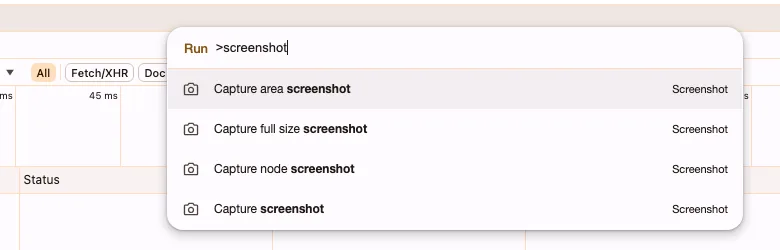
screenshot and the four capture commands appear. The second one is the full-page capture.It is free and already installed. The file is written straight out with no preview step in between, and Chrome saves a PNG. The other three capture commands in that menu, and the four limits of this one, are in how to take a full page screenshot in Chrome.
When the built-ins are not enough
Between them the three cover the capture itself, and in Edge’s case a pen. None of them crop, blur, watermark, or export a PDF. If that is your next step, you are opening another application — and the round trip is where most of the time goes. The extensions that close that gap are compared on alternatives.
OpenCapture takes the scrolling screenshot and does that next step in one pass, and works the same way in all three browsers:
- Click the toolbar icon on the page you want.
- Capture the full page. Sticky headers and fixed sidebars are rendered once, in place, rather than repeating down the image.
- Crop, draw, add text or shapes, blur anything that should not be shared, or tile a watermark across the whole export.
- Export as PNG or PDF.
Everything there except the watermark is free, no account is needed, and the capture runs on your device — there is no upload step in the code path, and the source is public.
Take a scrolling screenshot in any of the three
Questions
What is a scrolling screenshot?
A single image containing the entire height of a page, including everything you would have to scroll to reach. A normal screenshot captures only the visible window; a scrolling screenshot captures the whole document.
Does Chrome have a built-in scrolling screenshot?
Not in its menus. The closest thing is the Capture full size screenshot command inside the developer tools, reached with F12 then Ctrl + Shift + P. It downloads a PNG with no preview or editing step.
Why is the navigation bar repeated down my scrolling screenshot?
A header pinned to the top of the window can end up drawn once for every screen the capture covers. OpenCapture renders sticky headers and fixed sidebars once, in place.