The screenshot editor that opens with your capture
A screenshot is almost never finished the moment it is taken. Something has to be cropped off the top, circled, labelled or blurred out. In OpenCapture that step happens in the same window as the capture, before a file exists at all.
What the editor does
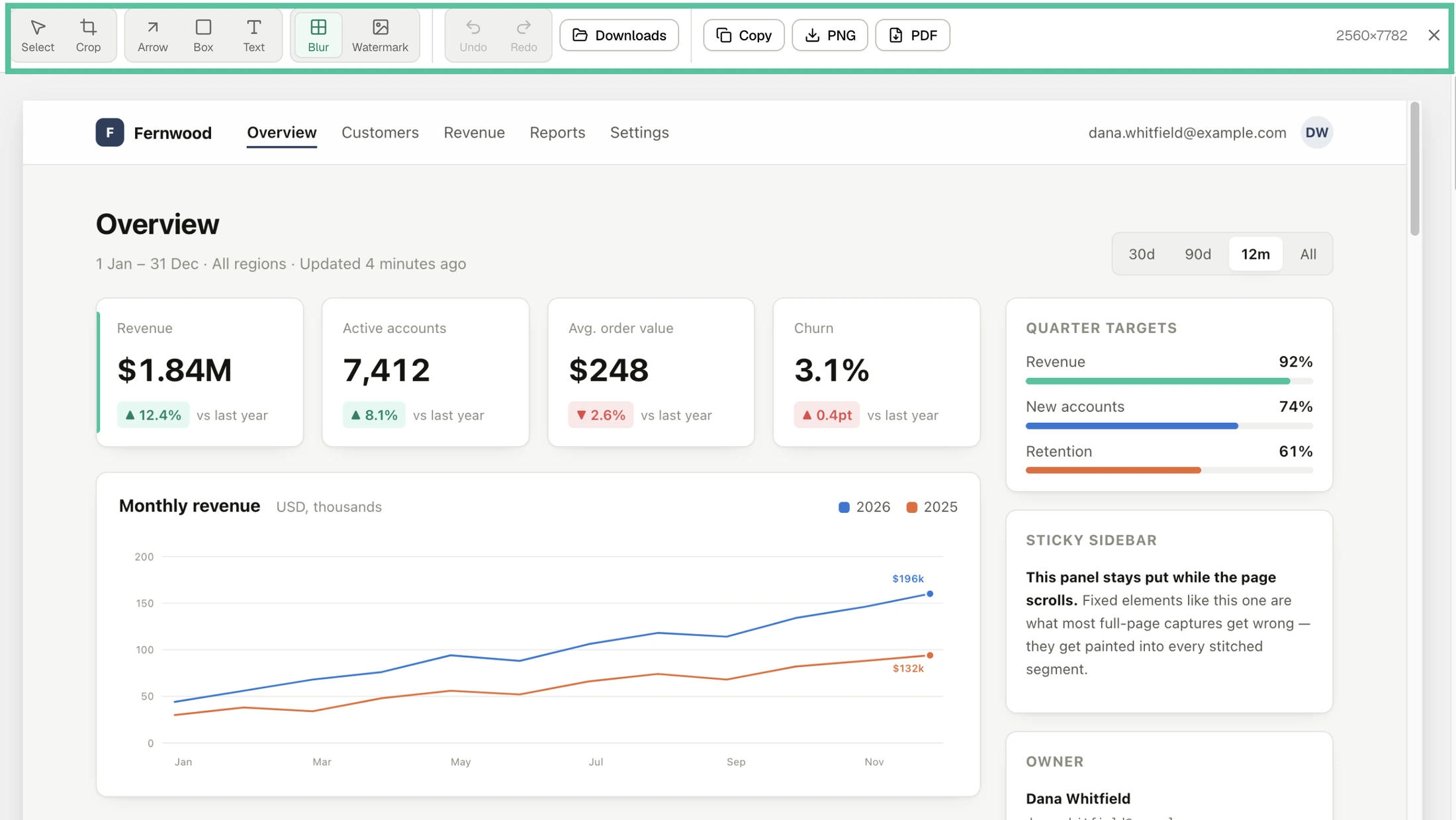
- Crop — trim the cookie banner, the sidebar, the half-row at the bottom.
- Draw — arrows and boxes, for pointing at the thing you are talking about.
- Text — a label on the image beats a paragraph underneath it.
- Blur — cover an email address, an account ID or a key before you share.
- Unlimited undo and redo — every step, all the way back. Nothing is permanent until you export.
- Browser frame — drop the capture inside a clean, empty browser window.
- Export — PNG or PDF, written to your machine.
Editing is free, and so is exporting what you edited
This is worth checking on any screenshot tool before you settle on it, because the line is usually drawn at the export rather than the edit. GoFullPage, for one, lets you edit on the free tier but needs a Premium subscription to export an edited capture — the full breakdown is on the GoFullPage alternative page.
Here the only thing behind a payment is a tiled logo or text watermark across the export. Every other tool in the editor, and every export that does not carry a watermark, is free and needs no account. What that means in practice is on screenshots with no account.
Blur is a redaction tool, with a limit worth knowing
Blurring averages pixels together rather than discarding them, so a short and predictable string — a four-digit code, a name you could guess — can sometimes be reconstructed from what is left. For anything that has to stay secret, a solid block is the safer choice. Why that is, and how far it goes, is in blurring sensitive information in a screenshot.
Where the editor sits in the flow
Click the toolbar icon, pick a capture mode — full page, visible area, or a region you drag — and the result opens in the editor. Everything after that happens on your own machine: the image is never sent anywhere for processing, which is the whole reason the editor is in the extension rather than on a website. The details are on what stays on your device.
Questions
Is there a screenshot editor built into the extension?
Yes. A capture opens in the editor instead of dropping straight into your downloads folder, so cropping, annotating and blurring happen in the same pass as the capture. Exporting is the last step rather than the first.
Can I export an edited screenshot for free?
Yes. Crop, arrows, boxes, text, blur and the browser frame are free to use and free to export. The only export that costs anything is one carrying a tiled watermark, which is the single Supporter feature.
What formats does the editor export?
PNG and PDF. PNG is lossless, so text and thin lines stay crisp. PDF writes the capture out as one continuous page rather than re-typesetting the page for paper.